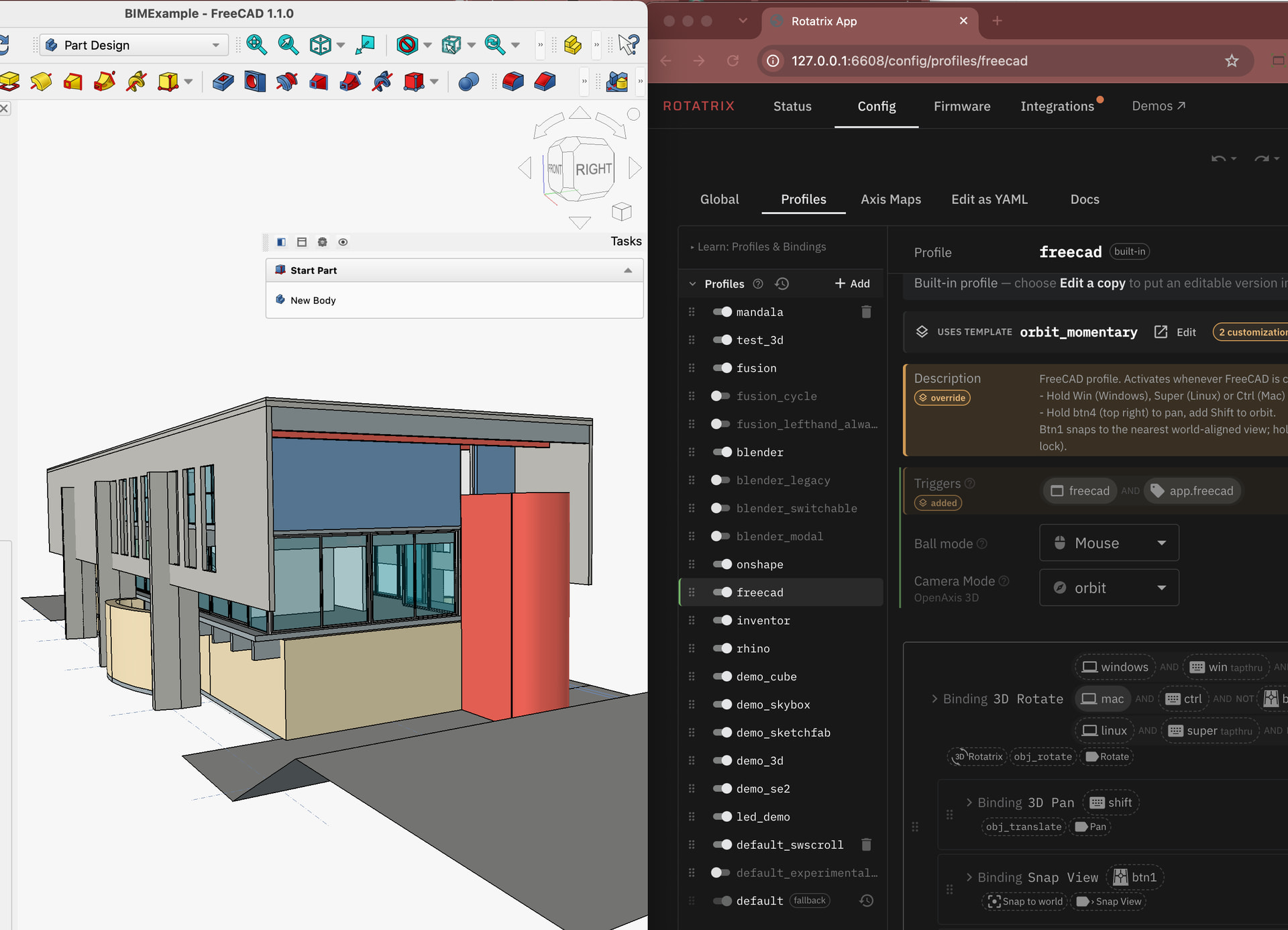
Found a useful Rotatrix setup? You can share the complete profile here so other people can try it out. Starting in version 1.6.0b2, you can do the following:
Share a profile
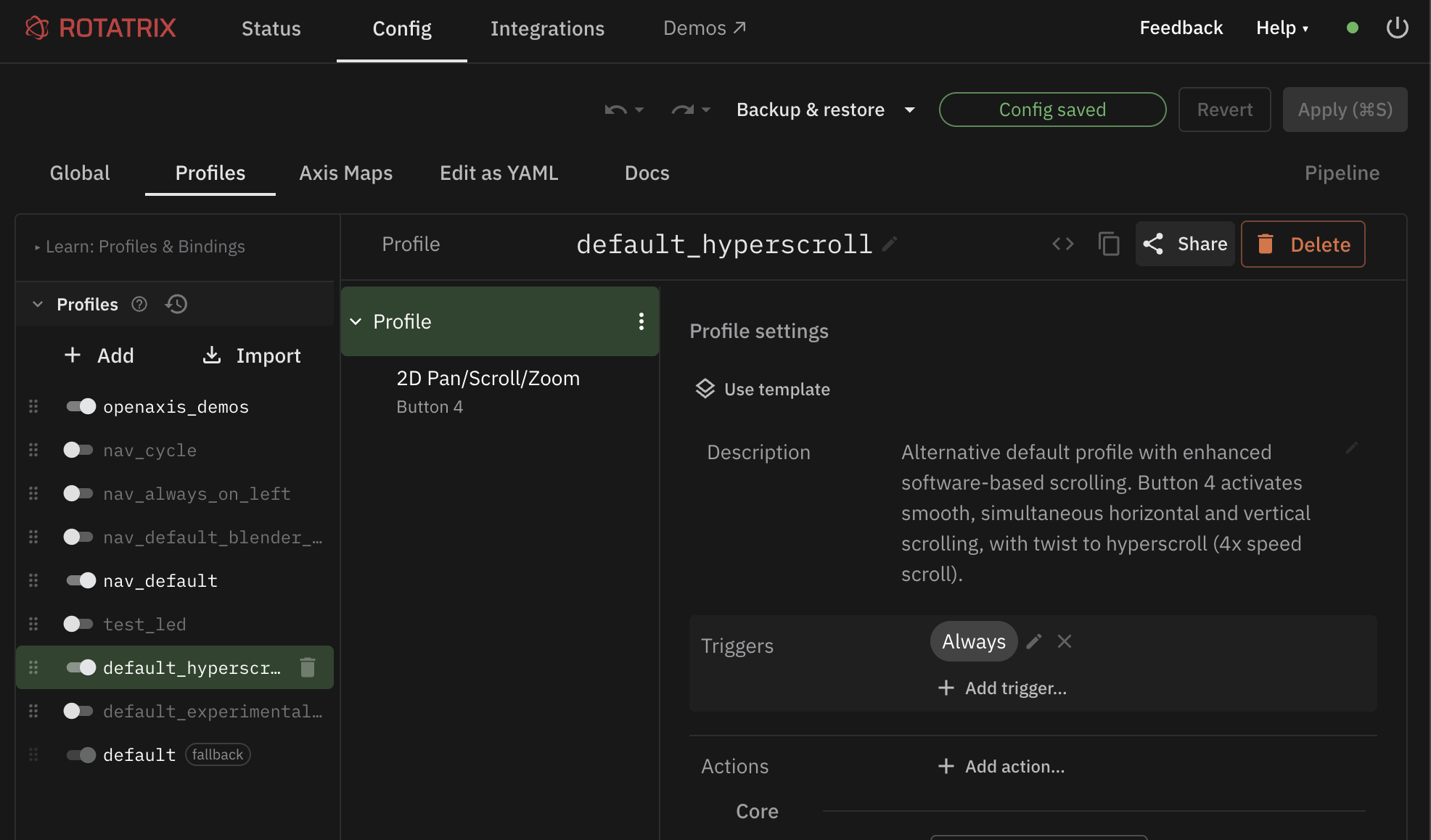
Click the Share button in the upper right of the profile editor, and choose Copy for Forum.
Paste that block into a forum post and it will appear like this:
format: rotatrix-bundle
format_version: 1
exported_by: 1.6.0b3
root:
  kind: profiles
  name: default_hyperscroll
  definition:
    description: Alternative default profile with enhanced software-based scrolling. Button 4 activates smooth, simultaneous horizontal and vertical scrolling, with twist to hyperscroll (4x speed scroll).
    triggers: [ always ]
    ball_mode: mouse
    bindings:
      - name: 2D Pan/Scroll/Zoom
        label: { text: 2D Pan/Scroll/Zoom, mode: replace }
        description: Roll ball up/down to scroll, left/right to pan, twist to hyperscroll.
        triggers: [ btn:4 ]
        ball_mode: rotatrix
        axis_map: software_scroll_hyperscroll
dependencies:
  - kind: axis_maps
    name: software_scroll_hyperscroll
    definition:
      axis_dominance: hard_decouple_snap_axis
      wx: { output: -scroll_y, osd: -scroll_y }
      wy: { output: scroll_x, osd: scroll_x }
      wz: { output: scroll_y, osd: scroll_y, gain: 4 }
  - kind: axis_dominance_presets
    name: hard_decouple_snap_axis
    definition:
      decouple_enabled: true
      decouple_soft: false
      decouple_threshold: 2
      single_axis_mode: snap
      single_axis_snap_deadzone: 0.3
      single_axis_snap_full: 0.8
    built_in: unchanged
Alternatively:
- Save a
.rotatrixfile and send it to someone - Copy the link for “Import into Rotatrix” (it will be a long url starting with
rotatrix://)
A profile usually references other resources like Templates, Axis Maps, and Axis Dominance Presets. The Share button bundles a snapshot all referenced resources together.
Import a profile
Click “Import into Rotatrix” button on the forum, or drag a .rotatrix file into the Config > Profiles page.
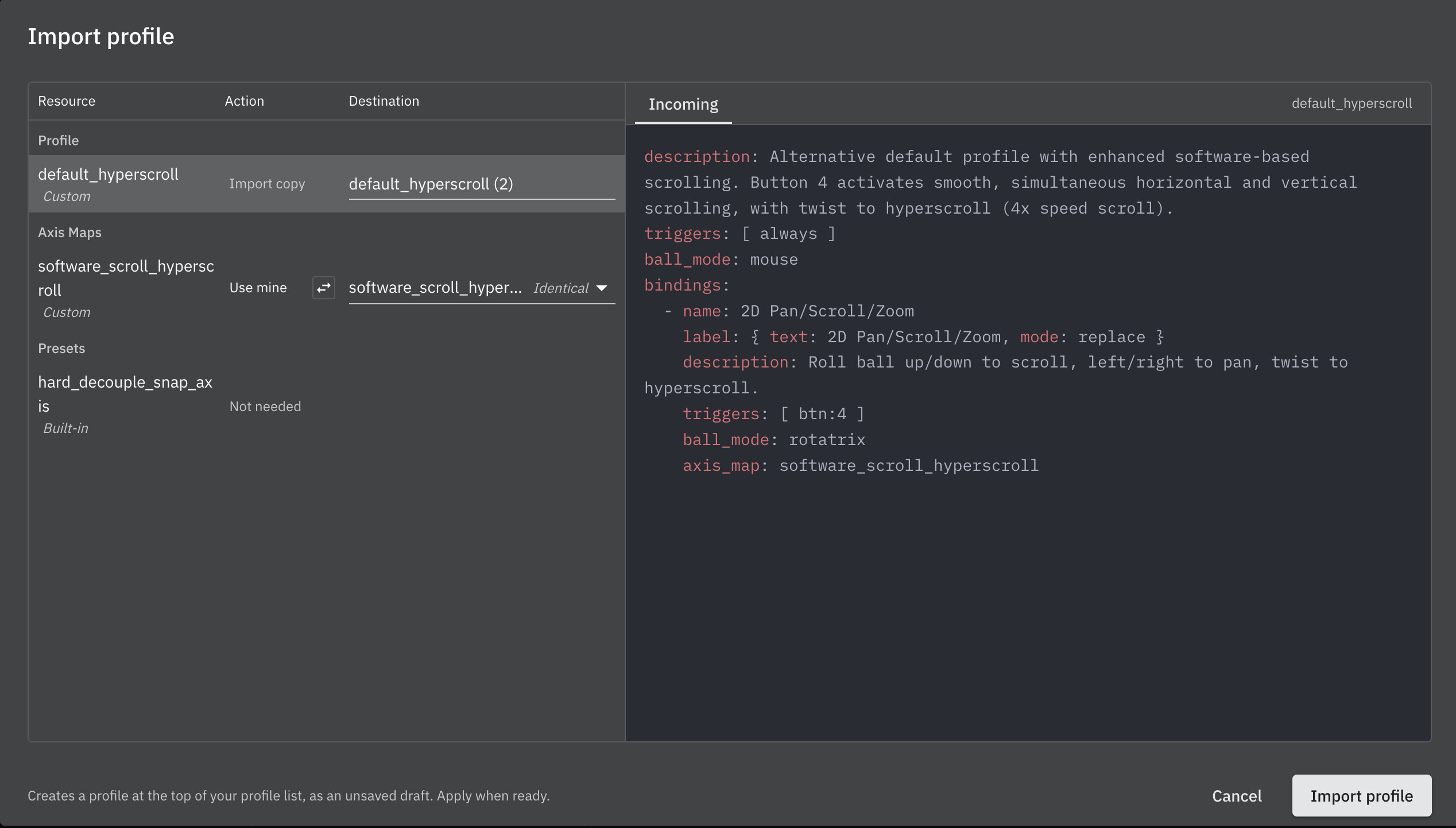
In the import dialog:
- Choose whether to change the name of the imported profile
- Choose whether to import dependent resources (e.g. Templates, Axis Maps, and Axis Dominance Presets), or replace them with references to your existing ones.
Once you’ve imported the profile, it will be a draft at the top of your profile list. Drag it to the desired position - remember that profiles are evaluated from top to bottom, with only the first matched profile activating.
Save your config to apply it.
Instructions for 1.5.1 and below
Old instructions
The recommended way to share profiles is by copying and pasting the YAML associated with the profile. Find the “<> (Edit as YAML)” button to turn the visual editor into a code block you can copy and paste:
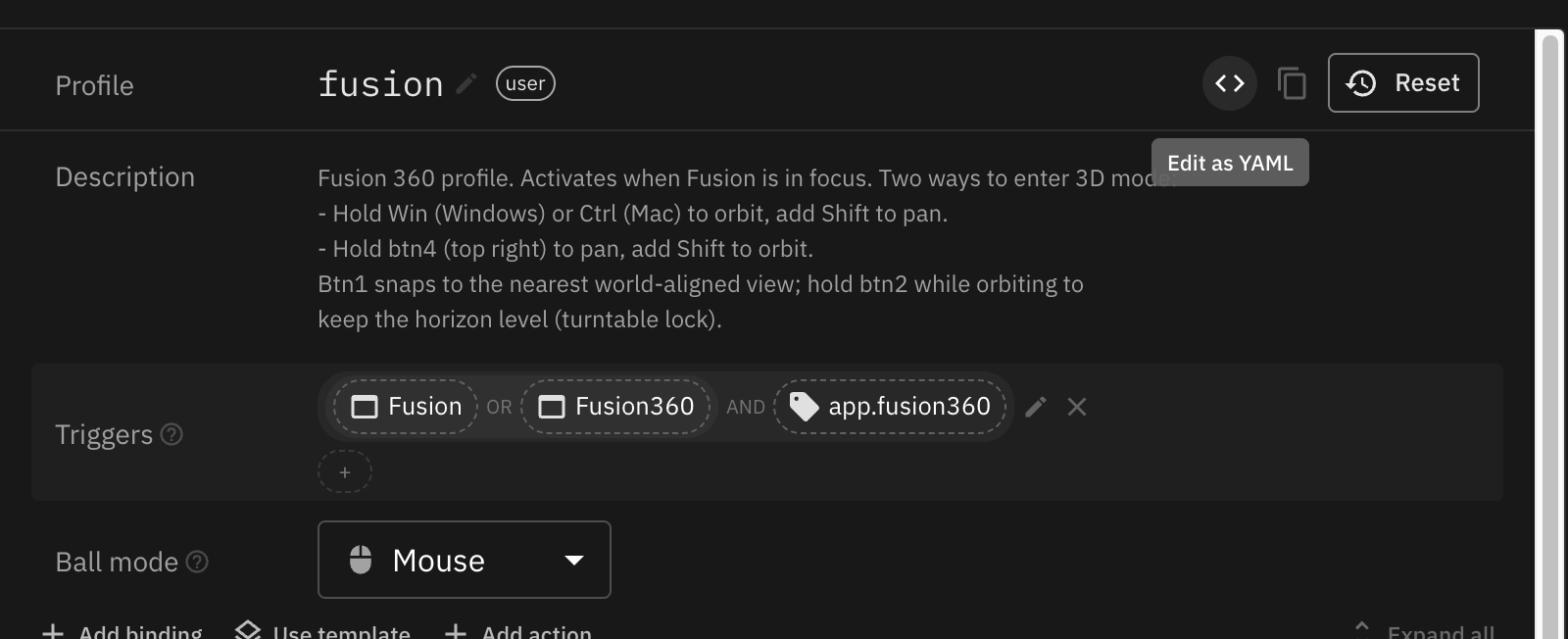
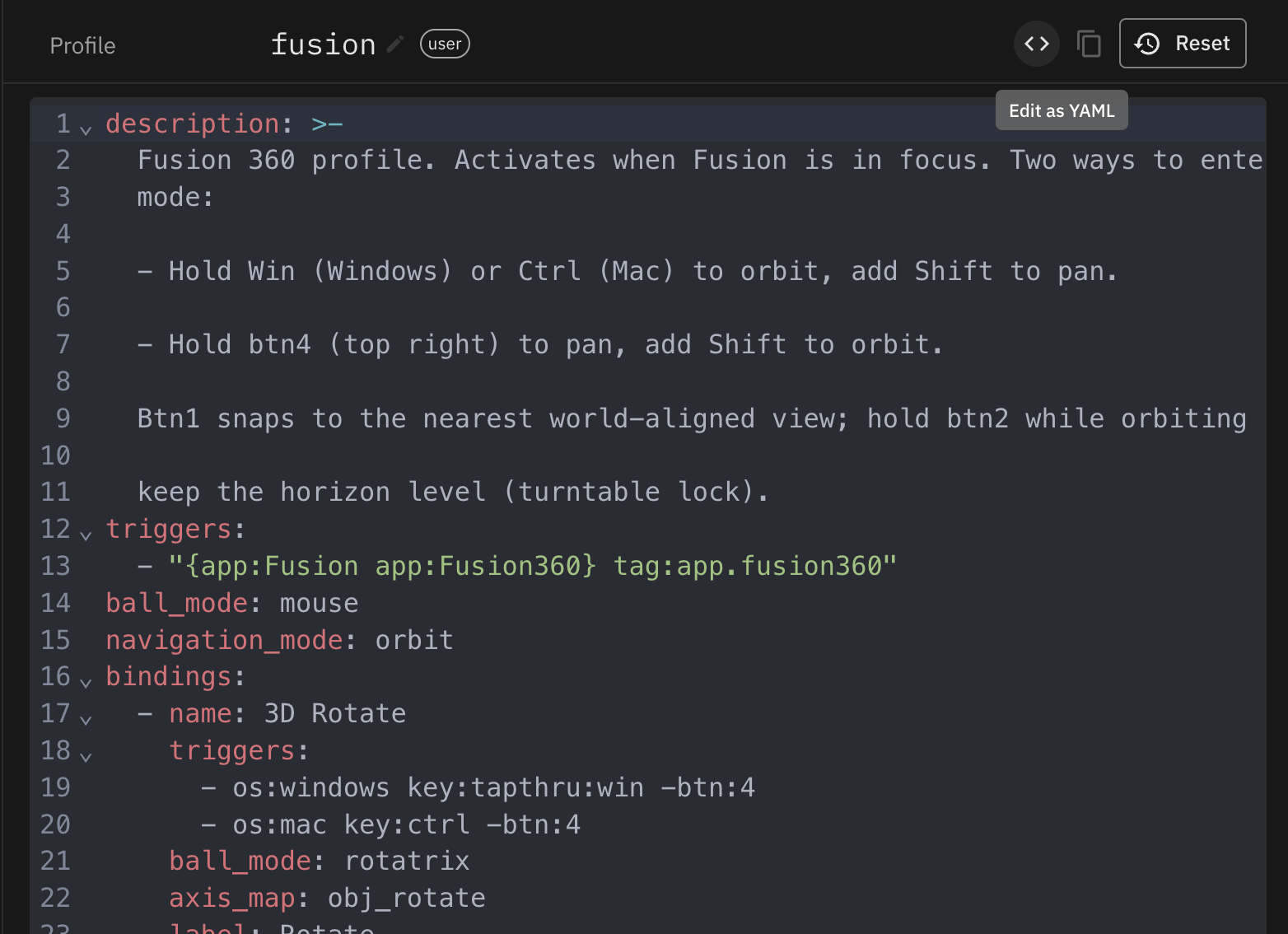
To try a profile you found, create a new profile, name it as desired, then click this button and replace the contents with the new YAML.
Check if the profile is triggering - after you save the profile, activate the app you want to use it in alongside the profile editor. You should see a green highlight next to the active profile and any activated bindings if you hold down trigger keys.
You may want to drag the profile to a suitable spot in the ordered list - the first profile whose triggers match will win.