A user on Discord got Fusion working in Linux Mint with Wine and Proton.
Please Note: Autodesk Fusion is not officially supported on Linux by Autodesk. However, it is possible for with some tinkering, I’m sharing these notes for advanced users in case they are helpful for people trying to use Rotatrix with Fusion on Linux.
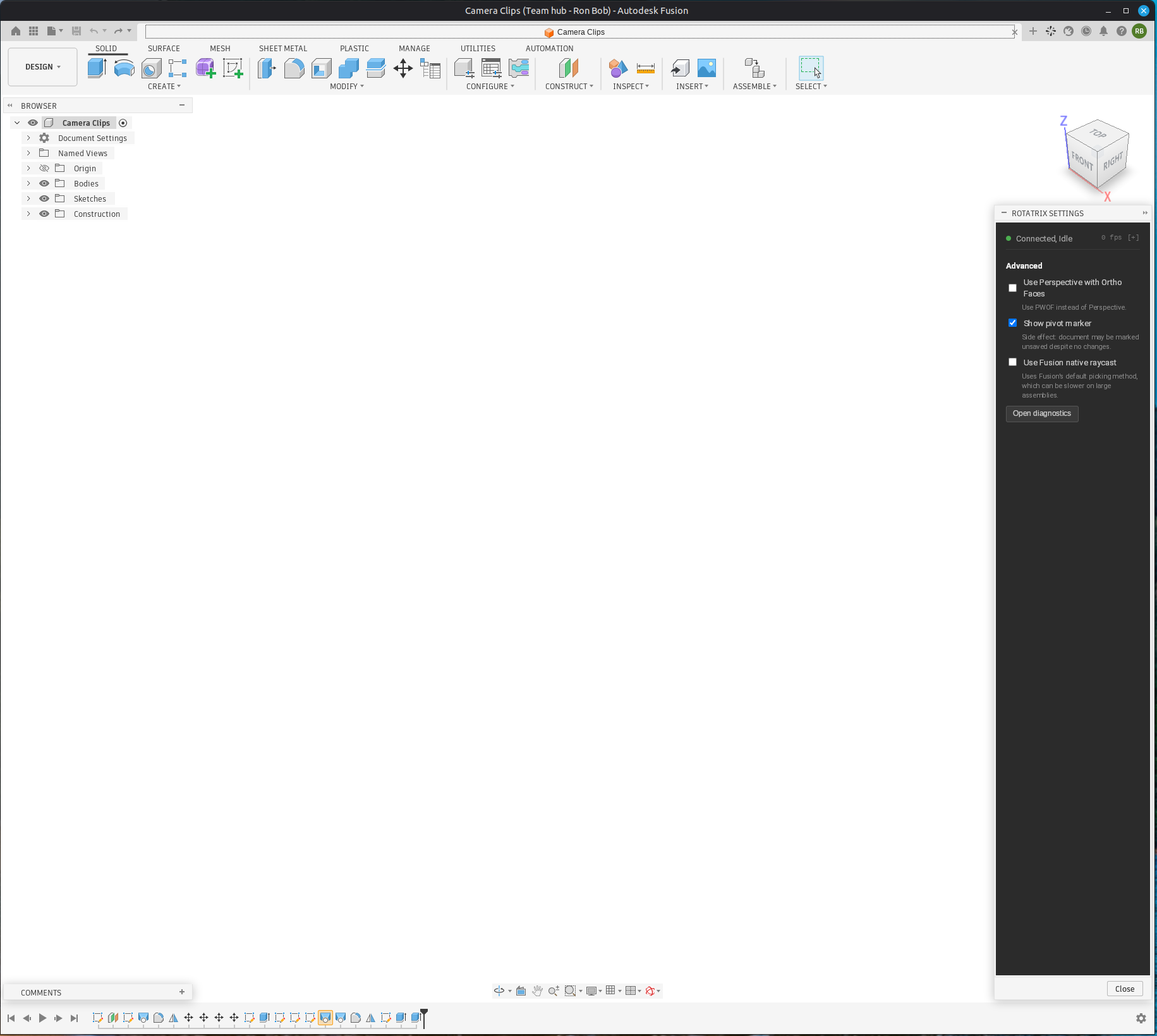
I’ve manually added the Fusion 360 integration to Rotatrix, and the software seems to be running fine. The Rotatrix settings window also appears in Fusion 360, as shown in the attached screenshot. Additionally, Rotatrix indicates that my mouse is connected.
However, I’m unable to get 3D navigation working properly in Fusion 360.
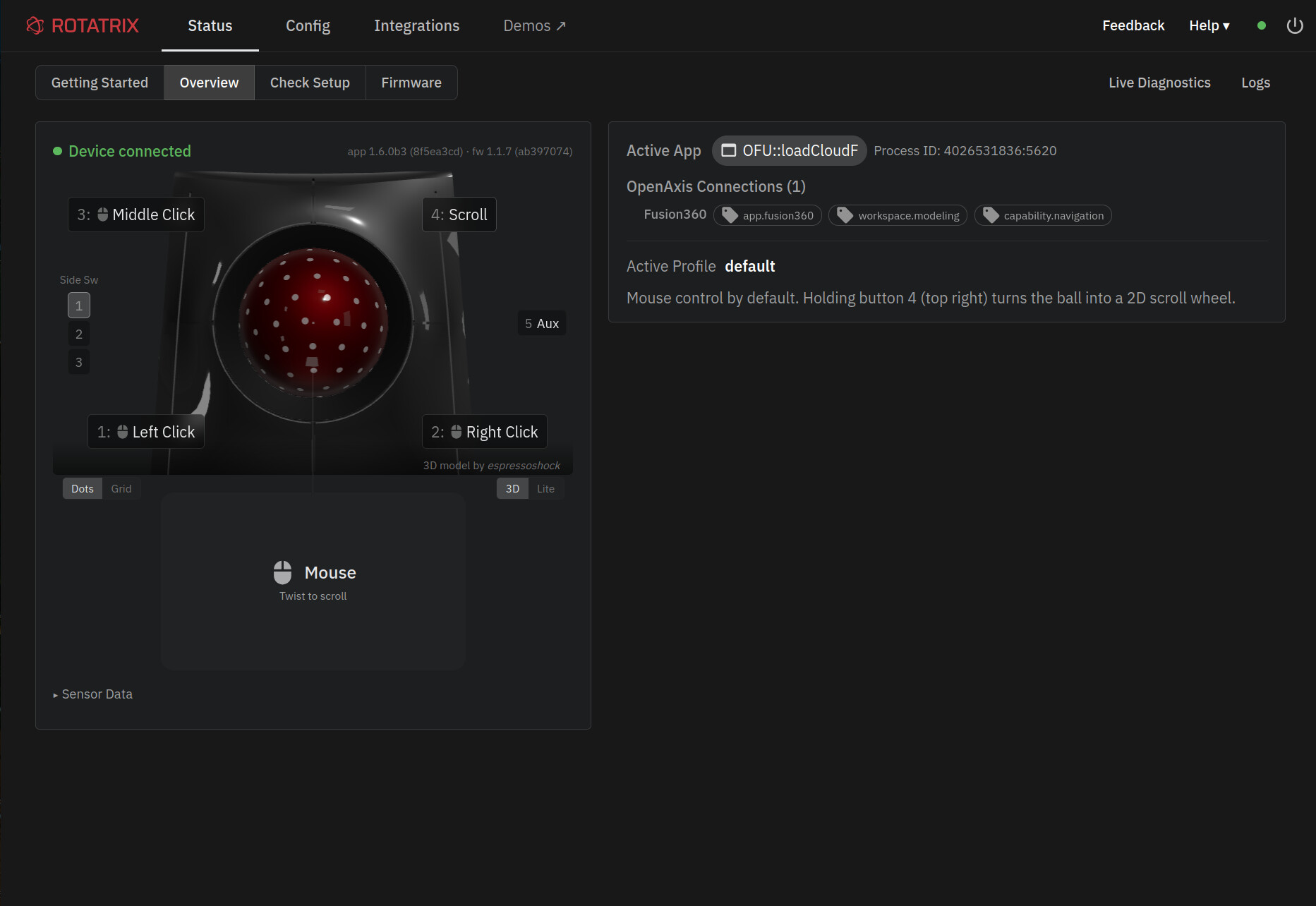
See that Fusion360 openaxis client is connected in Status, but input is not routed to it (no green dot next to Fusion360). This is because process ID is used to match to the integration, and the Fusion plugin can’t get the process ID from inside of Wine.
Here are steps to fix. Note: these instructions are for X11.
- Find Fusion’s window class. Leave Fusion open, then run this in the terminal:
xprop WM_CLASS
After running the command, click inside the Fusion window.
If xprop is missing, install it and try again:
sudo apt install x11-utils - Note the Fusion-specific name in the output. For example, it might look like:
WM_CLASS(STRING) = "fusion360.exe", "Fusion360.exe"
In this example, use Fusion360.exe. Your output may differ. If neither quoted value identifies Fusion—for example, both are generic Wine names—send us the output before continuing. - In Rotatrix, open Global settings → Active Window, and enable Custom Detection.
- Paste this into the command field. Replace REPLACE_WITH_FUSION_CLASS on the first line with the name from step 3, keeping the quotes:
fusion_class='REPLACE_WITH_FUSION_CLASS'

wid=$(xprop -root \_NET_ACTIVE_WINDOW 2>/dev/null | awk '{print $NF}')
case "$wid" in
 ""|0x0) printf '\\n'; exit 0 ;;
esac

app=$(xprop -id "$wid" WM_CLASS 2>/dev/null |
 awk -F '"' -v fusion="$fusion_class" '
   tolower($2) == tolower(fusion) ||
   tolower($4) == tolower(fusion) {
     print "Fusion360"
     exit
   }
   { print $4 }
 ')

if \[ "$app" = "Fusion360" \]; then
 printf 'Fusion360\\n'
else
 pid=$(xprop -id "$wid" \_NET_WM_PID 2>/dev/null | awk '{print $NF}')
 case "$pid" in
   ""|0|\*\[!0-9\]\*) printf '%s\\n' "$app" ;;
   \*)
     comm=$(cat "/proc/$pid/comm" 2>/dev/null)
     printf '%s\\t%s\\n' "$pid" "${comm:-$app}"
     ;;
 esac
fi
- Save and fully quit and reopen Rotatrix. This command omits the PID when Fusion is foreground and retains PID matching for other applications. You don’t need to add a profile tag.
- Test in Fusion. With the add-in connected and Fusion in the foreground, hold button 4 and move the ball to test rotation with the default navigation profile.
If Rotatrix still says “Waiting for Fusion,” tell us—that indicates a connection issue this workaround won’t fix.
To undo the workaround, disable Custom Detection, save, and restart Rotatrix.