I just updated my firmware, and my configuration was hosed. Now I can’t figure the bloody thing out.
I just want the rotatrix in Rotatrix mode all the time. I still use a mouse for most things, but want the ball to spin my FreeCAD views. Previously, I did this by simply deleting the modifier key. But I’ll be darned if I can figure out how to do it now.
I presume this is very simple once you see it, but I’m blind. Any suggestions?
Hi, can you try the Always-on navigation preset? I included it for exactly this setup. And your old config is backed up automatically upon update.
In the Rotatrix 1.6 app:
Open Help → Getting Started → 3D Navigation.
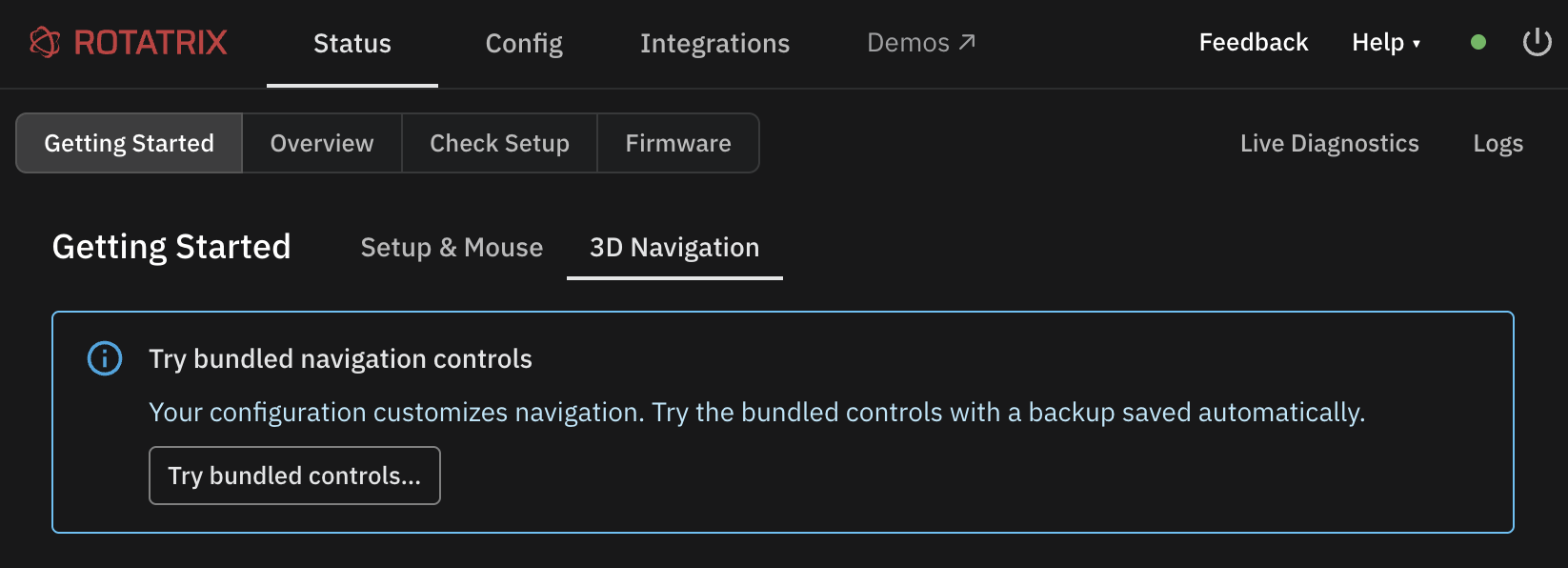
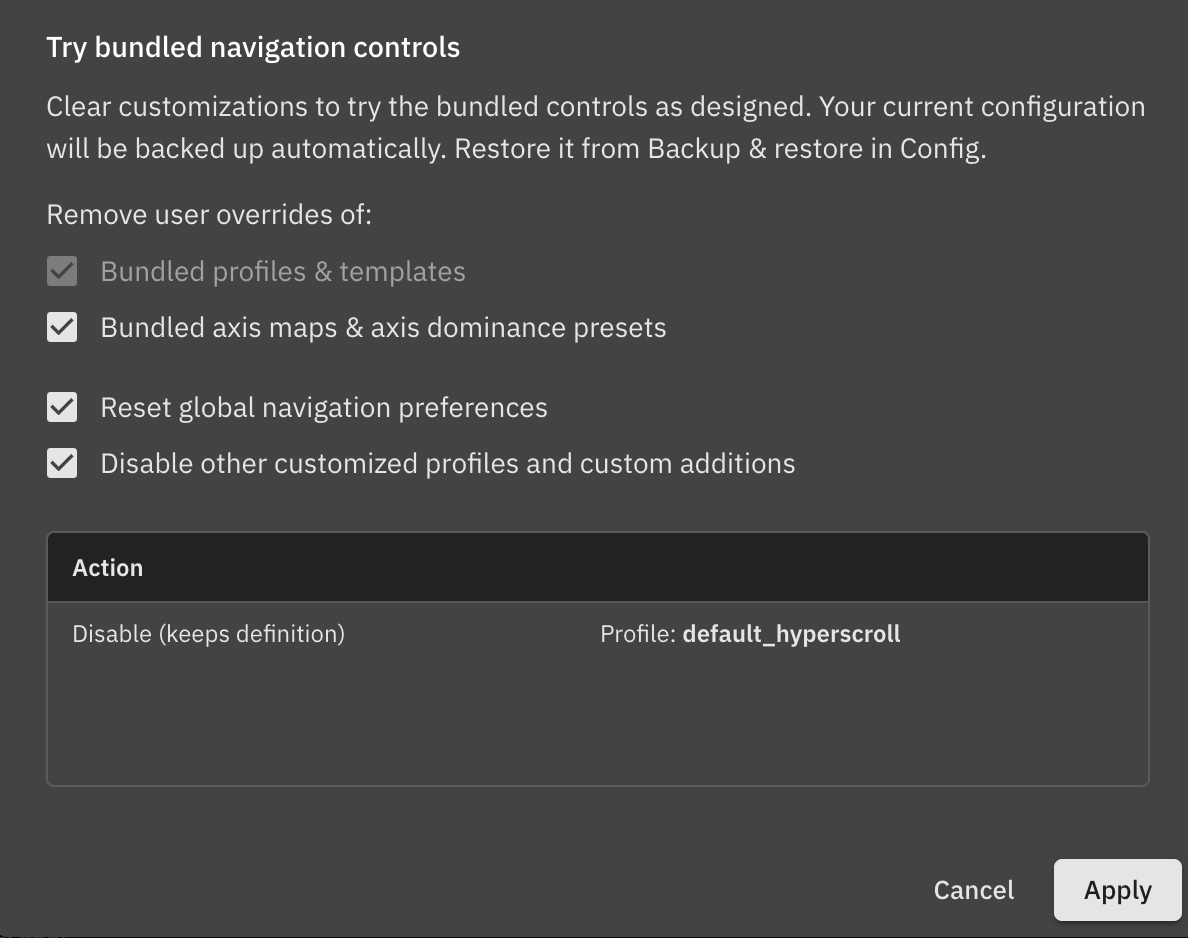
You may need to use the reset customizations on that screen.
Scroll to Try another navigation profile and click Always-on navigation.
Sorry about the difficulty, the configs have been revamped in order to simplify for more apps in the future.
David, thanks for your quick reply. I tried that. I highlighted the “Always On” area of the screen that has 3 sections, “Default”, “Always On”, & “Cycle”.
But up higher on that screen is shows that the the always on is “not active”. Here’s a text cut and paste. So how do I make it active?
BTW, I appreciate you revamping the config to make it simpler. This thing has so much capability, it must be hard to make the settings both simple and comprehensive.
=== Status / Getting Started Screen Cut & Paste Below =============================
Not active
View profile: nav_always_on_left
Customized controls — The guide shows the default controls, which may differ from yours.
Your config has customized the following:
“Not active” can have a few causes:
-
FreeCAD isn’t connected or focused. Open Status → Overview, leave it visible beside FreeCAD, and click inside FreeCAD’s 3D view. FreeCAD should appear under OpenAxis Connections with a green dot, and Active Profile should become nav_always_on_left. Switching back to Rotatrix’s settings can make it inactive again.
-
The integration needs updating. If you haven’t updated the FreeCAD integration since upgrading to 1.6, update it through Integrations and restart FreeCAD. Older integrations aren’t compatible with the 1.6 server.
-
Another profile takes precedence. In Config → Profiles, check which profile is active. The first enabled profile whose conditions match wins, so a matching profile above Always-on navigation can override it.
If you’re unsure, share a screenshot of Status → Overview while FreeCAD is focused, and we can identify which case applies.
I did a complete deletion and manual reinstall and it works now. Thanks for your help!
Glad that fixed it! It may have been a previously customized profile triggering instead of the newly included ones.
For anyone else encountering this, you can use the “Try bundled controls…” banner to reset customizations.
Alternatively, fully reset config in Config > Backup and Restore… > Reset All.